APP SDK
Payment Flow
Integrations
1. Add an APP
Developers need to first complete application creation before accessing to the SDK. Log in the merchant site, select in the left menu bar, and click “Add” an application:
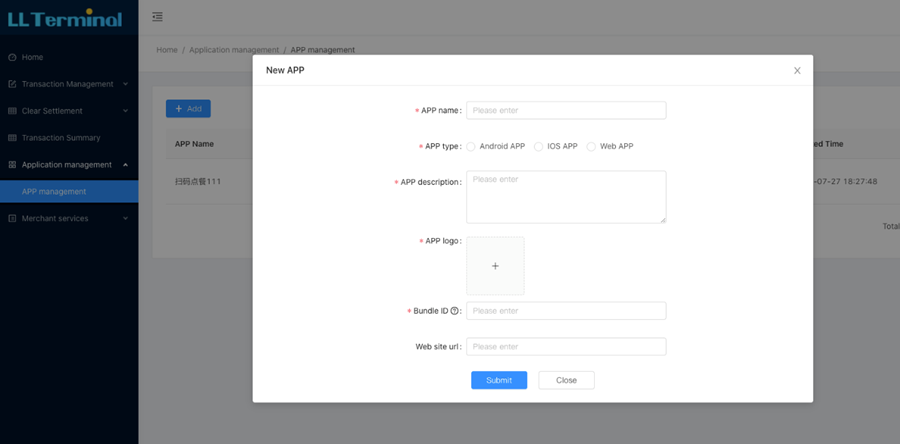
Required fields include:
- App name
- App type, Android, IOS, and Web supported (Please be noted SDK for Web is not available yet)
- App description
- App logo
- Package name/BundleId/Domain name (Enter the package name if it is an Android application; If it's an iOS application, you can enter Bundle Id; If it is a Web application, enter the domain name, which must be the same as the Web deployment site domain name)
Optional fields include:
- APP Signature digest: it is only applicable to Android platform to verify the validity of APP. It supports SHA256, SHA1 and MD5. The APP signature digest configuration of merchant site must be consistent with the front-end signature digest type configuration of SDK (Default SHA256)
- Website URL
Note: Required fields cannot be modified after the approval, while optional fields can still be modified freely. Improper configuration of APP signature digest will lead to unavailable SDK, please configure it correctly.**
After the APP application is completed, it will be submitted to the administrator for review. After the approval, the APP Key will be generated. The developer shall configure the APP Key into the SDK parameters, please refer to the Android and iOS integration steps for more details
2. Android integration steps
2.1. SDK integration import
1. Import development resources
1、Put AlipaySDK-<version>.aar and LLPayThaiSDK-<version>.aar package into the libs directory of the merchant application project
2、Add a dependent Gradle configuration to your APP Module
repositories {
    flatDir {
        dirs 'lib'
    }
}
dependencies {
    implementation (name: 'LLPayThaiSDK-1.0.0', ext: 'aar')
}
2. Add permission declaration
Add permissions to the Androidmanifest.XML for the merchant application project:
<uses-permission android:name="android.permission.INTERNET" />
<uses-permission android:name="android.permission.ACCESS_NETWORK_STATE" />
<uses-permission android:name="android.permission.ACCESS_WIFI_STATE" />
<uses-permission android:name="android.permission.READ_PHONE_STATE" />
<uses-permission android:name="android.permission.WRITE_EXTERNAL_STORAGE" />
3. Add rules of confusing
Add the following rules to the proguard-project.txt of the merchant application project:
-keep class th.co.lianlianpay.sdk.core.**{ *; }
-keep class th.co.lianlianpay.sdk.constants.**{ *; }
-keep class th.co.lianlianpay.sdk.model.**{ *; }
-keep class th.co.lianlianpay.sdk.callback.**{ *; }
-keep class th.co.lianlianpay.sdk.widget.**{ *; }
-keep class th.co.lianlianpay.sdk.task.**{ *; }
-keep class th.co.lianlianpay.sdk.enums.**{ *; }
Now, the development kit resources import completed.
2.2. Steps to start SDK
1. Configure merchant APP KEY
It can be configured in the Androidmanifest.xml, or set up through an API
<meta-data android:value="C3UBLN6225orgreopddj1" android:name="LIANPAY_APPKEY"/>
2. SDK initialization
Initialization in Application is recommended
public class AppApplication extends Application {
    @Override
    public void onCreate() {
        super.onCreate();
        LianPaySDK.init(this).setSandbox(true).setDebug(true);
    }
}
Parameter description:
- Sandbox: If is true, it can be tested in Lianlian and Alipay sandbox environment. Default is false, and it needs to be used in Lianlian and Alipay production environment
- Debug: Whether the log is in debug status, the log will open under debug status
- AppKey: Set appKey manually
- digestType: APP signature digest type, which must be consistent with the open platform configuration digest type, can be set to SHA256, SHA1, MD5, and the default is SHA256
3. Use a SDK
SDK supports API mode and component mode to make payment operation, via PayRequest and PayCallback to transmit parameters. PayRequest is the payment order information parameter, and PayCallback is the payment result callback interface.
(1)Construct payment order parameters
PayRequest payRequest = new PayRequest();
payRequest.setMerchantId("142019050800009001");  // Merchant ID
payRequest.setBizId("142019111200055026");  // Business ID
payRequest.setMerchantOrderId("P" + System.currentTimeMillis());  //Merchant Order ID
payRequest.setOrderCurrency("THB");  // Currency
payRequest.setOrderAmount("101.25");  // Amount
payRequest.setOrderInfo("app payment");  //Order description
payRequest.setNotifyUrl("https://www.yezhou.cc/callback/notify.php");  // Notify URL
payRequest.setRedirectUrl("https://www.yezhou.cc/callback/redirect.php");  // Redirect URL
payRequest.setPayType(PayType.SCB_BP);  // Product Code setting below has the same effect with PaymentMethod settings
//payRequest.setProductCode(ProductCode.MOBILE_BANKING.name());
//payRequest.setPaymentMethod(PaymentMethod.SCB_BP.name());

//payRequest.setPayType(PayType.KPlus_NTF);
//payRequest.setMobileNumber("0922652395");

Customer customer = new Customer();
customer.setFirstName("Joe");
customer.setLastName("Ye");
customer.setEmail("yezhou@yezhou.org");
customer.setPhone("+8610086");
payRequest.setCustomer(customer);

//Get the endorsement string (you can directly submit to the merchant server for endorsement)
String preStr = PayHelper.buildSignString(payRequest);
Log.i(LianConstants.TAG, "preStr: " + preStr);

//Simulate the calculation of the merchant’s signature (Required be placed on the merchant's server for signature)
String sign = SignUtil.addSign(payRequest, merchantPrivateKey);
Log.i(LianConstants.TAG, "sign: " + sign);
payRequest.setSignType(SignType.RSA.name());
payRequest.setSign(sign);

//Get request body
String body = PayHelper.formatPayRequest(payRequest);
Log.i(LianConstants.TAG, "body: " + body);
(2)Payment via API
LianPayManage lianPayManage = new LianPayManage(MainActivity.this);
lianPayManage.pay(buildPayRequest(), payCallback);
(3)Payment via componet
<th.co.lianlianpay.sdk.widget.LianPayWidget
    android:id="@+id/layout_lian_pay"
    android:layout_width="match_parent"
    android:layout_height="wrap_content"
    app:layout_constraintTop_toBottomOf="@+id/ll_order"
    app:layout_constraintLeft_toLeftOf="parent"
    app:layout_constraintRight_toRightOf="parent"
    android:layout_marginTop="20dp"
    android:layout_marginLeft="10dp"
    android:layout_marginRight="10dp"
    android:background="@drawable/shape_layout_round_rect_bg"
    />
LianPayWidget lianPayWidget = findViewById(R.id.layout_lian_pay);
lianPayWidget
    .withSCB(true)
    .withKbank(true)
    .withSCBMode(LianPayWidget.SCB_CCFA)
    .defaultPayType(LianPayWidget.SCB);
    //.setRadioBackground(R.drawable.selector_checkbox_bg);


lianPayWidget.startPay(buildPayRequest(), payCallback);
(4)Payment results callback
PayCallback callback interface contains three methods:
void onPayResult(PayResult payResult):Payment action is over, and the payment result is processed
void onPayStart():When the payment action starts, some initialization work can be done, such as loading progress bar, etc.
void onPayPrepared(PayType payType):Payment is ready to complete the callback, the next step will be called or redirected to KPlus or SCB Easy APP
Example of payment callback:
private PayCallback payCallback = new PayCallback() {
    @Override
    public void onPayResult(PayResult payResult) {
        Log.i(TAG, JSON.toJSONString(payResult));
        LoadingDialog.dismiss(MainActivity.this);
        if (LianSdkResult.PAY_SUCCESS.getStatus().equals(payResult.getStatus())) {
            Toast.makeText(MainActivity.this, "Payment Success", Toast.LENGTH_SHORT).show();
            //Simulate merchant verification (Recommended to verify on merchant server)
            Map<String, Object> result = payResult.getResult();
            String sign = (String) result.get("sign");
            result.remove("sign");
            boolean checkSignResult = SignUtil.checkSign(sign, result, lianlianPublicKey);
            if (checkSignResult) {
                Toast.makeText(MainActivity.this, "Verify signature sucess", Toast.LENGTH_SHORT).show();
            } else {
                Toast.makeText(MainActivity.this, "Verify signature fail", Toast.LENGTH_SHORT).show();
            }
        } else {
            Toast.makeText(MainActivity.this, payResult.getMessage(), Toast.LENGTH_SHORT).show();
        }
    }

    @Override
    public void onPayStart() {
        LoadingDialog.show(MainActivity.this, "Paying...");
    }

    @Override
    public void onPayPrepared(PayType payType) {
        LoadingDialog.dismiss(MainActivity.this);
    }
};
4. Payment result
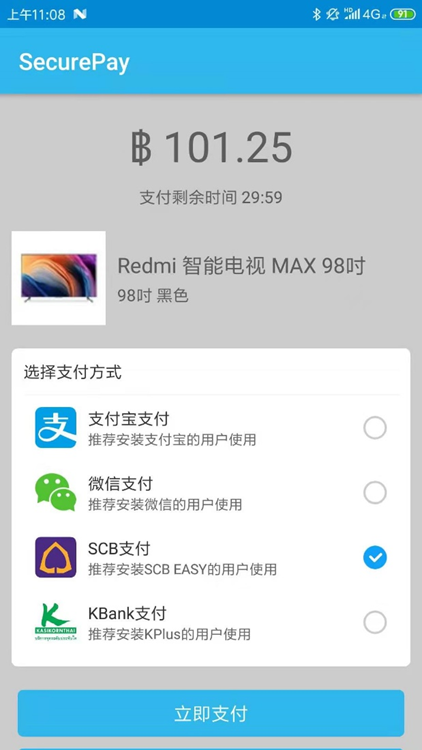
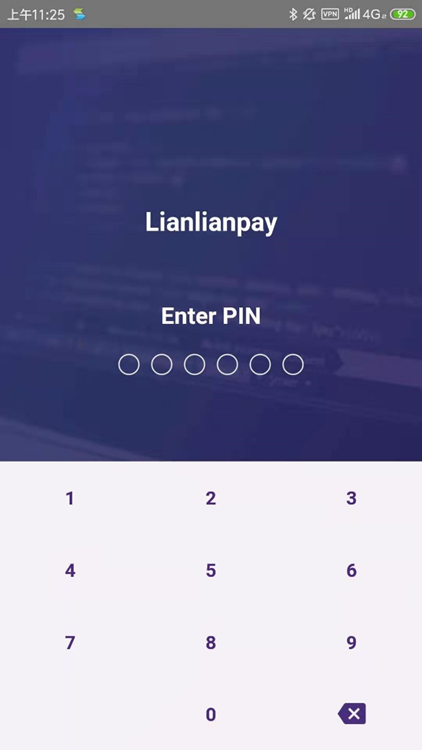
Refer to the Demo, the payment process is as follows:
3. IOS integration steps
3.1. Access to the SDK
- Download the iOS SDK of Mobile Payment of LianlianPay Thailand: llpaythaisdk-IOS-v1.0.0.zip
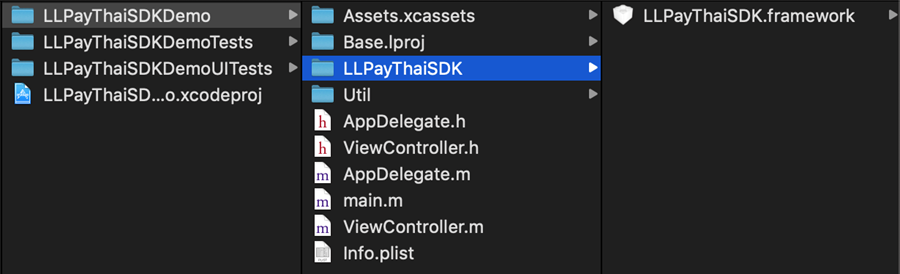
- After decompression, the LlPaythAISdk.Framework for integration will be obtained, as shown in the figure below:

3.2. Import and configure SDK
1. Start Xcode and copy the llPaythAISdk.Framework just obtained into your project folder, as shown in the figure below:
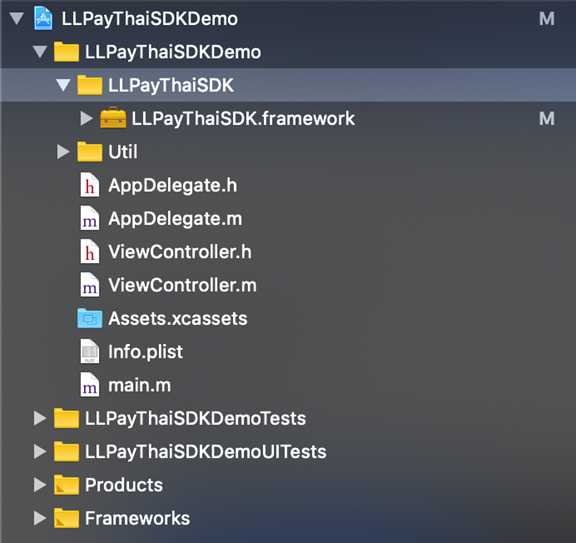
2. Import into the project, as shown in the figure below:
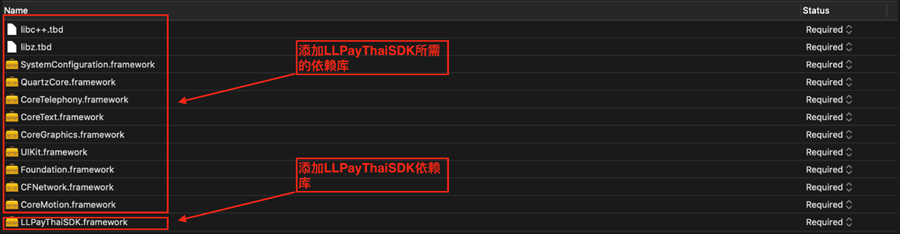
3. Add the following dependencies in the Link Binary With Libraries section of the Build Phases TAB:
Please note:
(1) If the version after Xcode 7.0, need to add libc++. TBD, libz. TBD;
(2) If the version before Xcode 7.0, you need to add libc++. Dylib, libz.dylib (as shown in the figure below).

4. Click the project name, click Info TAB, then click URL Types, click +, and then type LLPayThaiSDKDemo back to URL, as shown below:
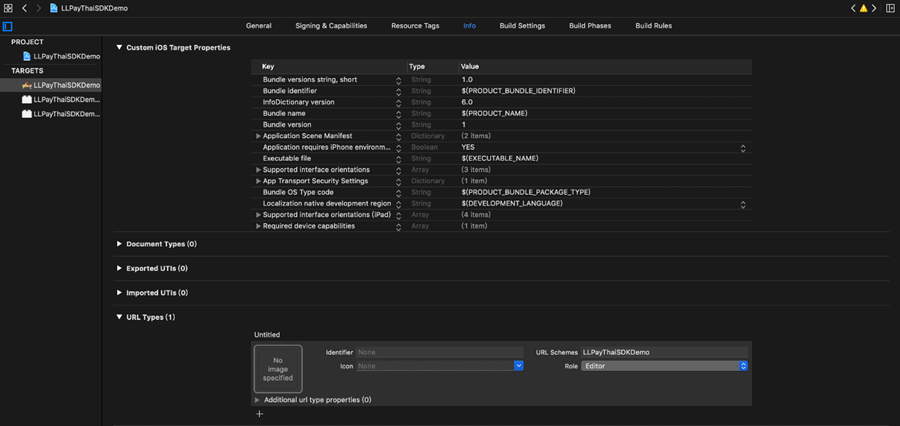
Note: If it is not configured, the user will not be able to go back to the merchant App to complete the entire payment process.**
3.3. Refer to SDK DEMO to start using SDK
1. In the AppDelegate. M file, add the reference of header file and add the core code as follows (if you want to see more code, please get the DEMO):
#import <LLPayThaiSDK/LLPayThaiSDK.h>

- (BOOL)application:(UIApplication *)application didFinishLaunchingWithOptions:(NSDictionary *)launchOptions
{
    // Override point for customization after application launch.
    self.window.rootViewController = self.vc;
    [self.window makeKeyAndVisible];

    // AppKey is obtained by the merchant registering the App at the merchant portal
    [[LLPayThaiSDK sharedInstance] registerApp:@"C3UBLN6225orgreopddj" productEnvironment:NO];

    return YES;
}
- (BOOL)application:(UIApplication *)application
            openURL:(NSURL *)url
  sourceApplication:(NSString *)sourceApplication
         annotation:(id)annotation {

    if ([url.host isEqualToString:@"safepay"]) {
        // Jump to Alipay wallet for payment and process payment results
        [[LLPayThaiSDK sharedInstance] processOrderWithPaymentResult:url standbyCallback:^(NSDictionary *resultDic) {
            NSLog(@"result = %@",resultDic);
            self.vc.payButton.enabled = YES;

            UIAlertController *alert = [UIAlertController alertControllerWithTitle:@"Payment Result" message:resultDic[@"message"] preferredStyle:UIAlertControllerStyleAlert];
            [alert addAction:[UIAlertAction actionWithTitle:@"OK" style:UIAlertActionStyleDefault handler:^(UIAlertAction * _Nonnull action) {

            }]];

            [self.vc presentViewController:alert animated:YES completion:NULL];
        }];
    }
    return YES;
}

// NOTE: Use the new API interface after 9.0
- (BOOL)application:(UIApplication *)app openURL:(NSURL *)url options:(NSDictionary<NSString*, id> *)options
{
    if ([url.host isEqualToString:@"safepay"]) {
        //Jump to Alipay wallet for payment and process payment results
        [[LLPayThaiSDK sharedInstance] processOrderWithPaymentResult:url standbyCallback:^(NSDictionary *resultDic) {
            NSLog(@"result = %@", resultDic);
            self.vc.payButton.enabled = YES;

            UIAlertController *alert = [UIAlertController alertControllerWithTitle:@"Payment Result" message:resultDic[@"message"] preferredStyle:UIAlertControllerStyleAlert];
            [alert addAction:[UIAlertAction actionWithTitle:@"OK" style:UIAlertActionStyleDefault handler:^(UIAlertAction * _Nonnull action) {

            }]];

            [self.vc presentViewController:alert animated:YES completion:NULL];
        }];
    }
    return YES;
}
2. In the file you want to initiate the payment, add the header file reference and the core code as follows (if you want to see more code, please get the DEMO) :
#import <LLPayThaiSDK/LLPayThaiSDK.h>


- (void)pay:(id)sender {

    self.payButton.enabled = NO;
    //  Merchant’s private key, used to sign business parameters
    NSString *privateKey = @"xxxxxx";

    // SDK payment request object
    LLPayThaiPaymentObject *payObject = [[LLPayThaiPaymentObject alloc] init];
    payObject.merchantId = @"142019050800009001";   // Merchant ID in Lianlian pay
    payObject.bizId = @"142019111200055026";    // Business ID in Lianlian Pay
    payObject.channelCode = ChannelCodeAlipay;  // Selected payment method, only Alipay supported
    payObject.productCode = @"ALIPAY_ONLINE";   // Payment product, Alipay: Alipay_online
    payObject.paymentMethod = @"APP_PAYMENT";   // Payment method, Fixed value: APP_PAYMENT
    payObject.merchantOrderId = [self generateTradeNO]; // Order number sent to Lianlian merchants can be generated by the merchants
    payObject.orderCurrency = @"THB";   // Payment currency, currently only THB
    payObject.orderAmount = @"0.05";    // Payment amount, with two decimal places
    payObject.orderInfo = @"sdk demo test order info";  // Merchant payment order information
    payObject.memo = @"test order"; // Merchant payment note remarks
    payObject.notifyUrl = @"https://www.baidu.com"; // Notification address of the merchant server, used to receive the payment success notification

    // Generate signature string
    ModelUtil *modelUtil = [[ModelUtil alloc] init];
    NSDictionary *payDict = [modelUtil dicFromObject:payObject];
    NSString *signString = [modelUtil generateSignString:payDict excludeFields:nil];

    // Sign with private key to generate business parameter signature
    NSString *sign = [CryptoUtil rsaSignString:[NSString stringWithFormat:@"%@", signString] WithPrivateKey:privateKey];
    payObject.sign = sign;

    // Initiate payment
    [[LLPayThaiSDK sharedInstance] payOrder:payObject fromScheme:@"LLPayThaiSDKDemo" callback:^(NSDictionary *resultDic) {
        // Payment result handling
        self.payButton.enabled = YES;

        UIAlertController *alert = [UIAlertController alertControllerWithTitle:@"Payment Result" message:resultDic[@"message"] preferredStyle:UIAlertControllerStyleAlert];
        [alert addAction:[UIAlertAction actionWithTitle:@"OK" style:UIAlertActionStyleDefault handler:^(UIAlertAction * _Nonnull action) {

        }]];

        [self presentViewController:alert animated:YES completion:NULL];
    }];
}
Note: In the DEMO, some utility is provided that are used locally for the client where the sample signature resides. For security reasons, please save the private key on the server and check the signature on the server.
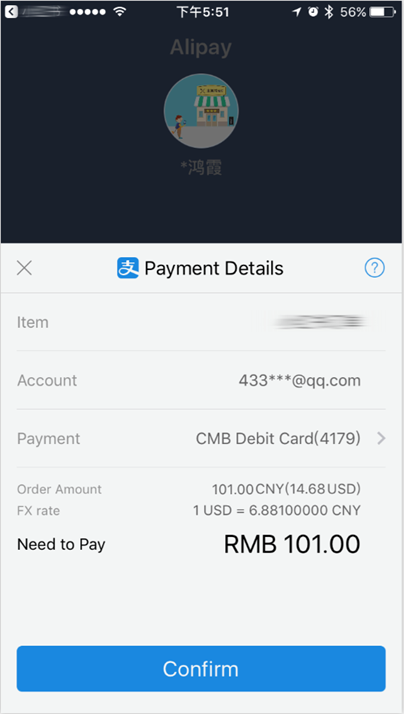
3. Initiate the payment application. If the application is successful, it will be redirected to the cashier desk of Alipay App and users are required to confirm the payment, as shown in the figure below: