WooCommerce
WooCommerce Plugin Integration Guideline
Note
If your server uses security software such as Cloundflare, you need to add LianLian ip to the ip whitelist: 18.139.71.117, otherwise you will not receive a notification of successful order payment.
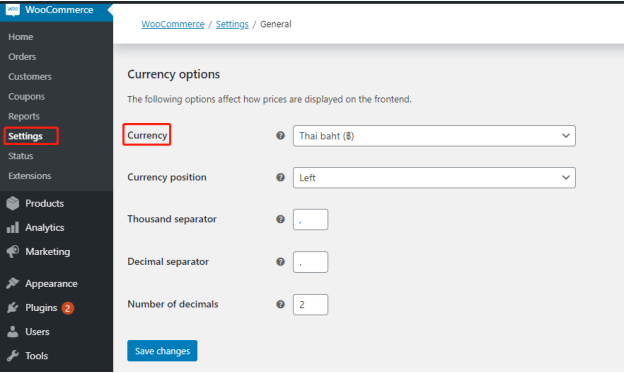
Step 1: Store currency set up
Currently THB and foreign currency (USD, VND, AED, GBP, EUR, JPY, AUD, NZD, HKD, SGD, CHF, BDT, BND, CAD, CNY, DKK, IDR, INR, KRW, KWD, LKR, MOP, MYR, NOK, NPR, OMR, PHP, PKR, QAR, RUB, SAR, SEK, TWD, ZAR, BHD) are available for Lianlian Pay. Please make sure your store base currency is set up in currency as you applied with us.
Step 2: Configuration on WooCommerce
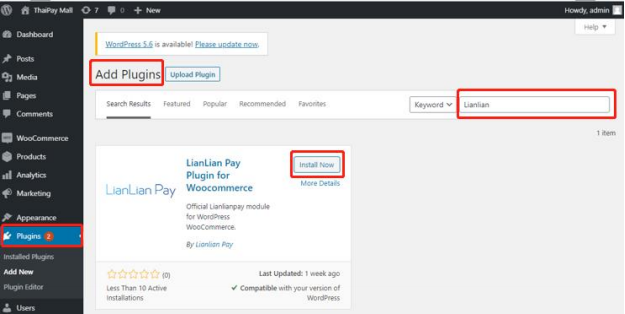
a. Go to wp-admin page, click menu Plugin > Add New > Search plugin by using keyword “Lianlian” > Click Install Now
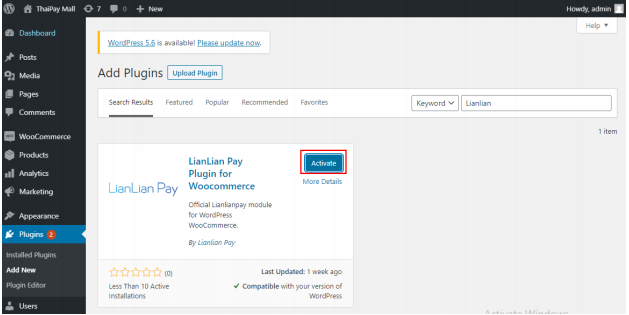
b. Click Activate and wait until the plugin has been activated
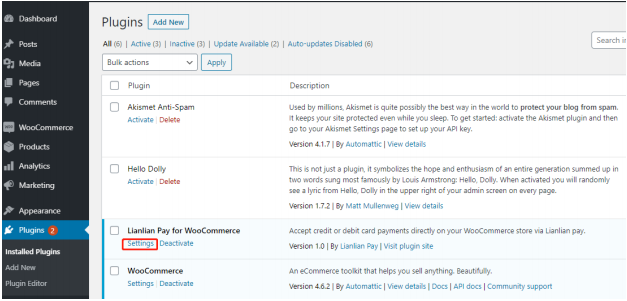
c. Lianlian Pay for WooCommerce will be displayed in the Plugins list, then click “Settings”
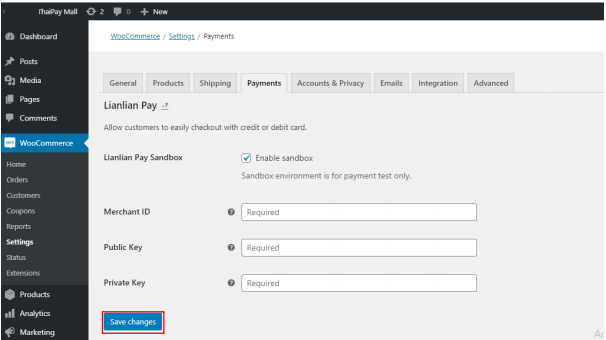
d. Check Enable Lianlian sandbox if you want to test payment gateway in sandbox
- ✓ Enter Merchant ID, Public Key (Provided by Lianlian Pay while merchant account set up)
- ✓ Enter Private Key (Generated by your own)
- ✓ Click “Save Changes”
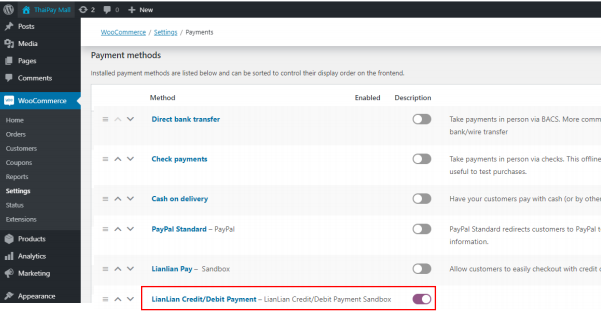
e. To activate Lianlian payment gateway, go to menu WooCommerce > Setting > Payment > Enable Lianlian Credit/Debit Payment